Plug Claude Code, Codex, Cursor, or Claude Desktop straight into your game data — and let your favorite AI run LiveOps alongside you.
Back in May, we introduced Nia, Balancy’s built-in AI assistant. Nia lives inside the platform and understands your offers, events, segmentation, and economy.
Today we’re opening the door in the other direction.
Balancy now speaks MCP — the Model Context Protocol — which means you can connect the AI assistant you already use every day and let it work with your live game data, exactly the way you do in the Admin Panel.
What we launched: Connect Your Own AI
MCP is an open standard for connecting AI assistants to external tools and data. With Balancy’s MCP support, your own assistant — Claude Code, Codex, Cursor, or Claude Desktop — plugs directly into your project.
Then you just describe what you want in plain language:
→ Create a weekend offer for $4.99 that gives 1000 gems.
→ Set up an A/B test for this store item’s price.
→ What’s the average price across my store?
…and your assistant does the work. No commands to memorize, no field names to look up — you describe the outcome, and it figures out the rest.
Nia vs. MCP: two directions, one engine
It’s easy to mix up the two, so here’s the clean distinction:
- Nia lives inside Balancy. You open the platform, and the assistant is right there.
- MCP works the opposite way. Your external AI reaches into Balancy from wherever you already work — your IDE, your terminal, your desktop app.
Both run on the same underlying capabilities and the same safety model. Pick whichever fits your workflow — or use both.
What your assistant can do
Once connected, your AI can do essentially anything you’d do by hand in Balancy — including the fiddly parts:
- Create content and entities — items, store items, offers, offer groups, game events, configs, and custom templates.
- Wire up A/B tests — full tests with variants, overrides, and control groups configured correctly (normally one of the more tedious things to build manually).
- Set prices and products — real-money (hard-currency) products and virtual prices, matched to the right store items.
- Manage localization — create and update localized strings across all your languages at once.
- Build nested structures — whole chains in a single pass (event → offer → store item → item), so you’re not linking everything by hand.
- Modify what already exists — read, update, and delete documents; rework existing offers, events, prices, and conditions.
- Build UI — lay out windows and screens in the UI Builder, create prefabs, and write scripts when a screen needs custom behavior.
- Understand your project — answer questions about how your game is set up, and run calculations on your data: average price, highest price, and whatever economy numbers you care about.
What it cannot do
Both your AI via MCP and our built-in assistant Nia cannot save changes and make deploys and other operations with branches. It works in current branch, and all changes are going into change history, but it is you who presses Save All or Discard All, Deploy, Revert Commits, Merge, and New Branch.
How it works — and why it’s safe
This is the part we’re most deliberate about.
Your external assistant never writes to Balancy’s servers directly. Every change is routed through your own Balancy frontend, running in your browser:
Your AI (Claude / Codex) → Balancy MCP endpoint → your browser (Balancy open) → Balancy
That open browser window is the bridge. The design exists for one reason: control.
- Nothing is written blindly on the server side.
- Every change flows through the app you already have open, so you see it before it’s saved.
- If your browser session isn’t open, nothing can be changed. Full stop.
Only one browser tab can hold the bridge at a time, so windows never fight over the same session. A small indicator on the assistant icon tells you which one is live: green means this window holds the bridge, amber means it’s connecting, and grey means it’s not connected.
Start on a branch — not production
MCP is brand new, so treat it as experimental for now.
Don’t point it at your production branch. Spin up a separate branch, run your experiments there, and promote the changes the usual way once you’re happy with the result.
This isn’t just an AI caveat — it’s good practice for anyone. Nobody should edit production directly, human or AI. An assistant is just another agent making changes on your behalf, so the same care applies (arguably a little more).
Getting started
Setup takes three steps:
- Generate an API token on the API Keys page in Balancy. It’s shown only once, so store it somewhere safe.
- Connect your AI client. Copy your personal MCP endpoint and token into your assistant’s config. For Claude Code, for example, that’s a single command:
claude mcp add --transport sse balancy
  https://balancy-ai.balancy.cloud/mcp/sse
  --header "Authorization: Bearer YOUR_API_KEY"
Ready-to-copy snippets for Codex, Cursor, and Claude Desktop are on the same page.
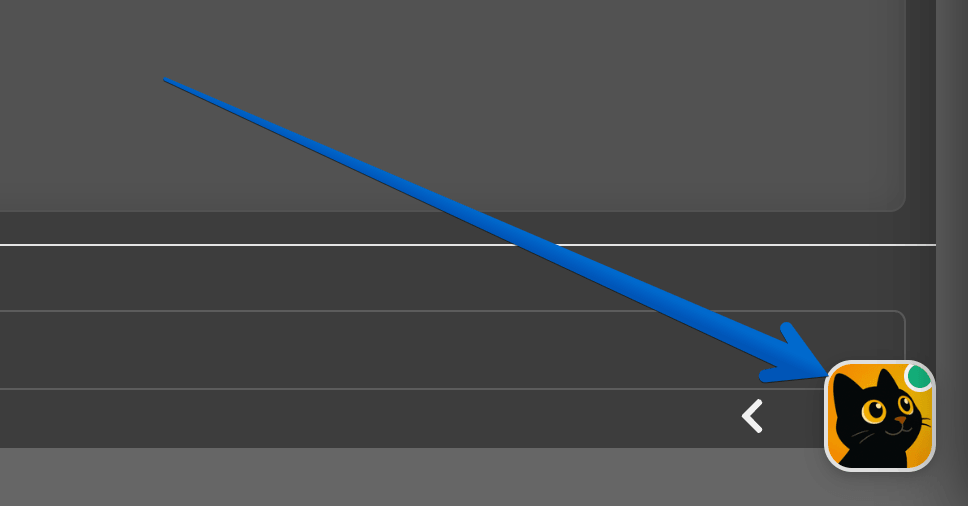
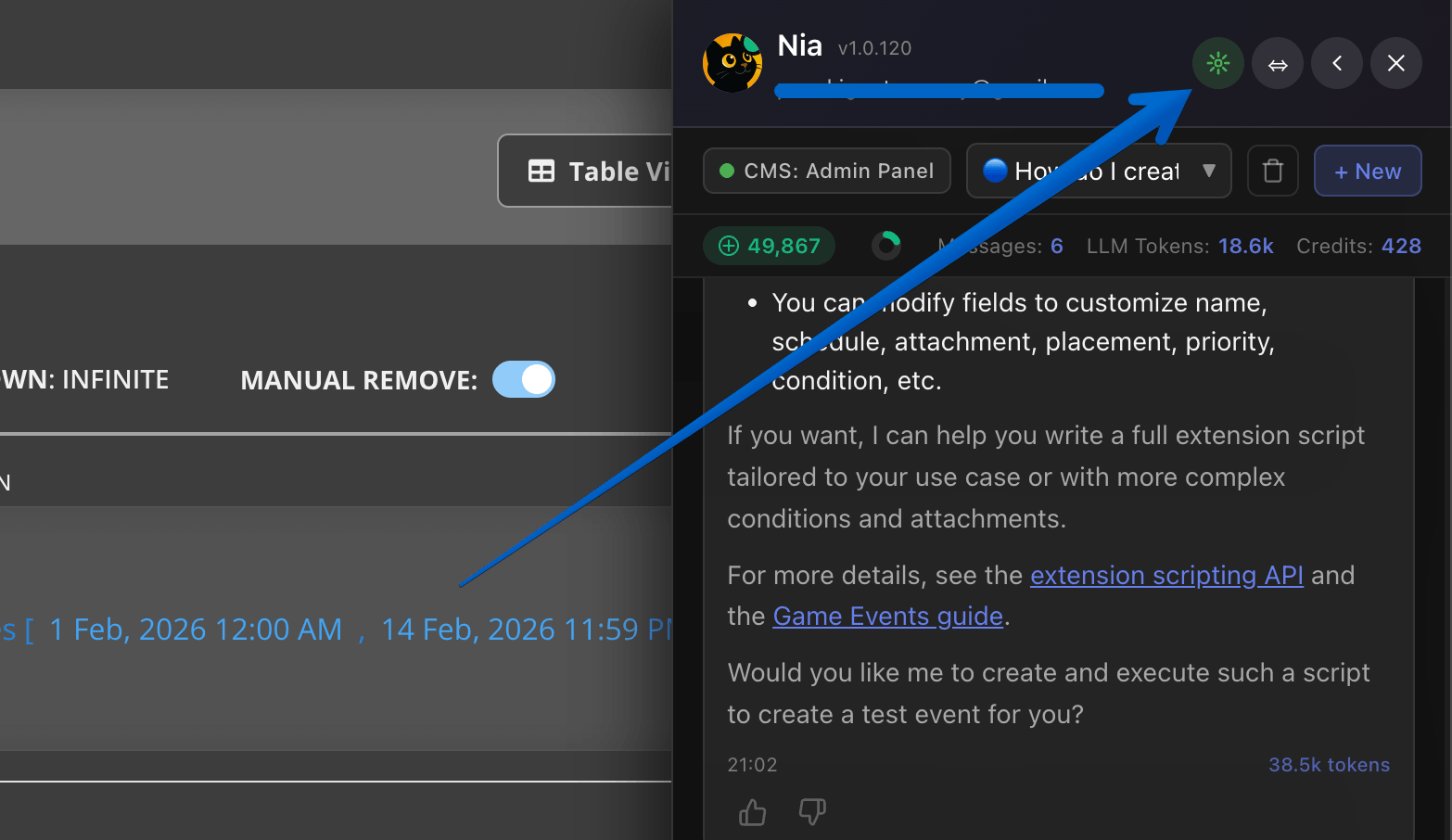
- Open Balancy in your browser and connect the bridge. Click the assistant icon, open the External AI Bridge, and hit Connect to External AI.
That’s it — your assistant is connected and can start making changes you review live.
Full setup instructions, client-by-client snippets, and troubleshooting are in the MCP documentation.
Try it
If you already spend part of your day inside Claude Code, Codex, or Cursor, MCP lets you bring Balancy into that same window — no context switching, no dashboard hunting.
Spin up a branch, connect your assistant, and tell it what you want to build.
Questions about MCP? Reach out to our team — we’d love to hear how you’re using it.